

This guide is for All AWARD® users who need to update or reset their MFA devices or authentication methods. It explains how to manage your Multi-Factor Authentication (MFA) settings in AWARD®, including how to view, remove, and reset your authentication methods.
Accessing Your Account Security Settings
- Log in to your AWARD® account.
- In the top right-hand corner of AWARD®, click your username.
- From your profile, select Log-in Details.
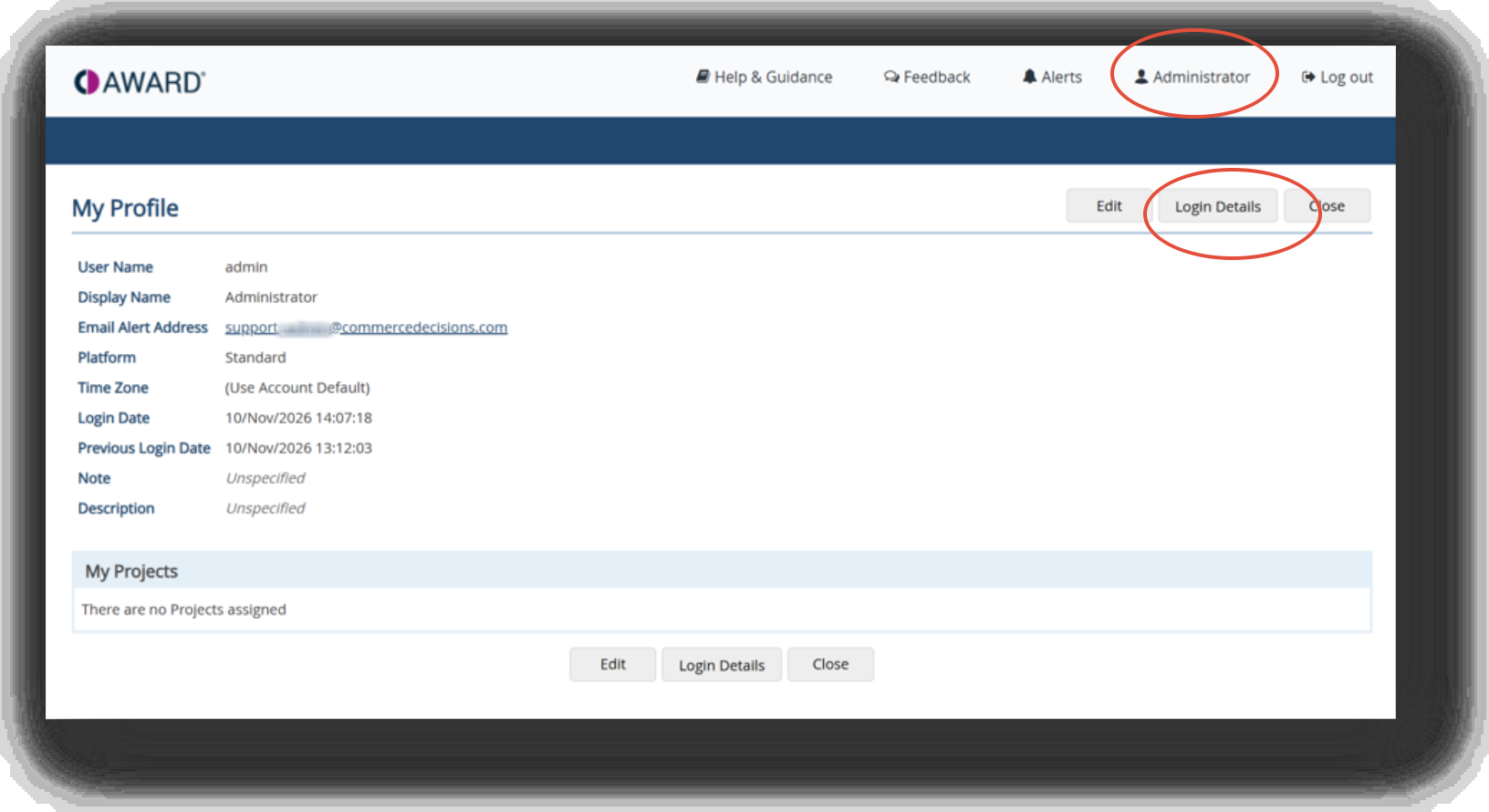
The My Profile page will open.
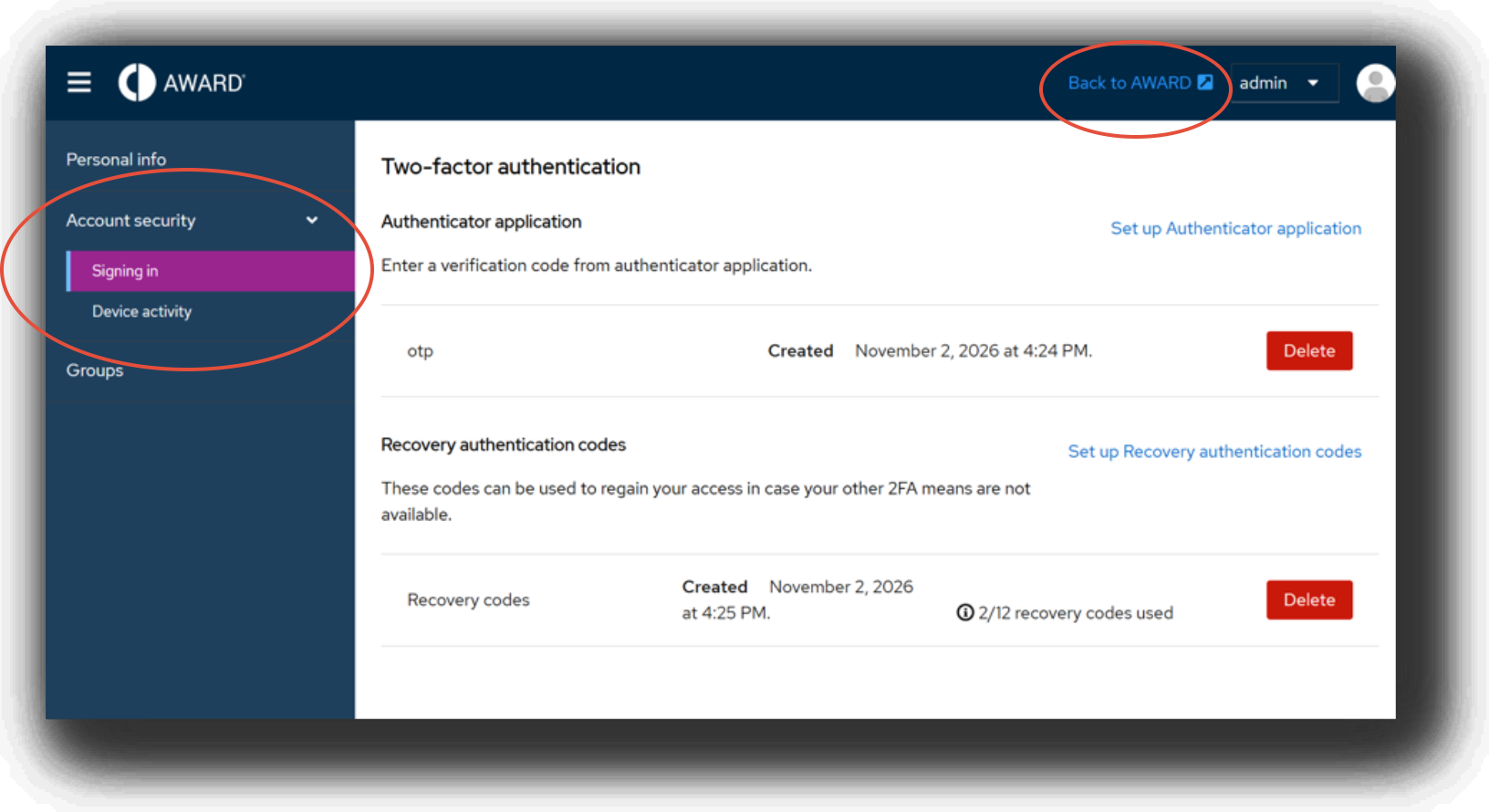
- Expand the Account Security section.
- Select Signing In.
Your personal details page will open, displaying your account security settings.
Managing Your MFA Devices
- Scroll down to the Two-Factor Authentication section.
- Here you will see any authentication methods currently associated with your account, such as:
- Authenticator Application (OTP) for authentication app verification codes.
- Recovery Authentication Codes for emergency access if your primary MFA method is unavailable.
- To remove an existing MFA method, click Delete against the relevant entry.
Important
If you delete your existing MFA method(s), you will be required to set up MFA again the next time you sign in to AWARD®.
Returning to AWARD®
- Click Back to AWARD® at the top of the page.
- You will be returned to the My Profile page.
- Select Close to return to the main AWARD® home page.
Related Information