

This article is for users who are prompted to complete Multi‑Factor Authentication (MFA) during sign‑in and need to understand the expected MFA process.
What is Multi-Factor Authentication (MFA)?
Multi Factor Authentication (MFA) adds an extra layer of security to your AWARD® account. In addition to your username and password, you are required to provide a second form of verification. This is usually a one time code generated by an authenticator app on your mobile device.
Even if your password is compromised, MFA helps prevent unauthorised access to your account.
Setting up MFA for your AWARD® account is easy. Here's how to do it:
Before you start
You’ll need a mobile device with an authenticator app installed. Commonly used apps include: Google Authenticator, Microsoft Authenticator, and FreeOTP.
Signing in with MFA for the first time
- Access AWARD®
Open your organisation’s AWARD® login URL.
You may notice the login screen looks slightly different — this is expected when MFA is enabled. - Enter your credentials
Sign in using your usual username and password.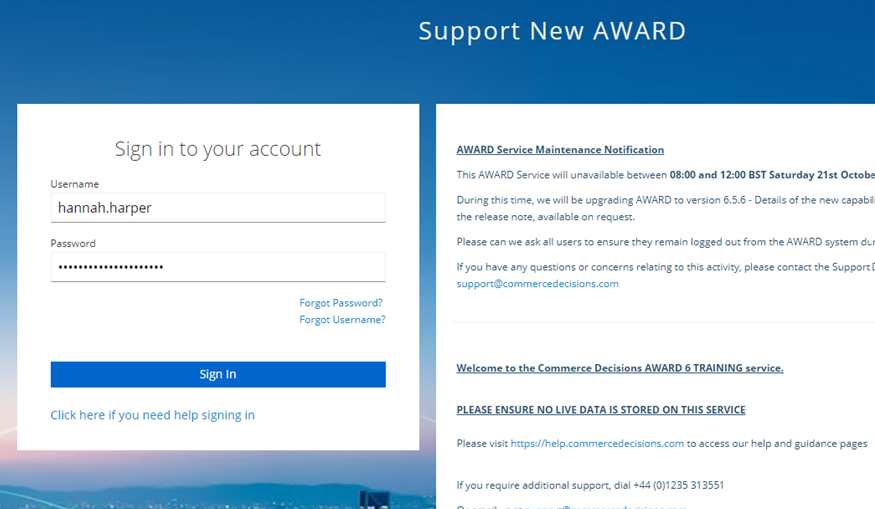
- Set up MFA
If this is your first MFA sign‑in, a QR code will be displayed on screen.
Use your authenticator app to scan the QR code and follow the on‑screen instructions.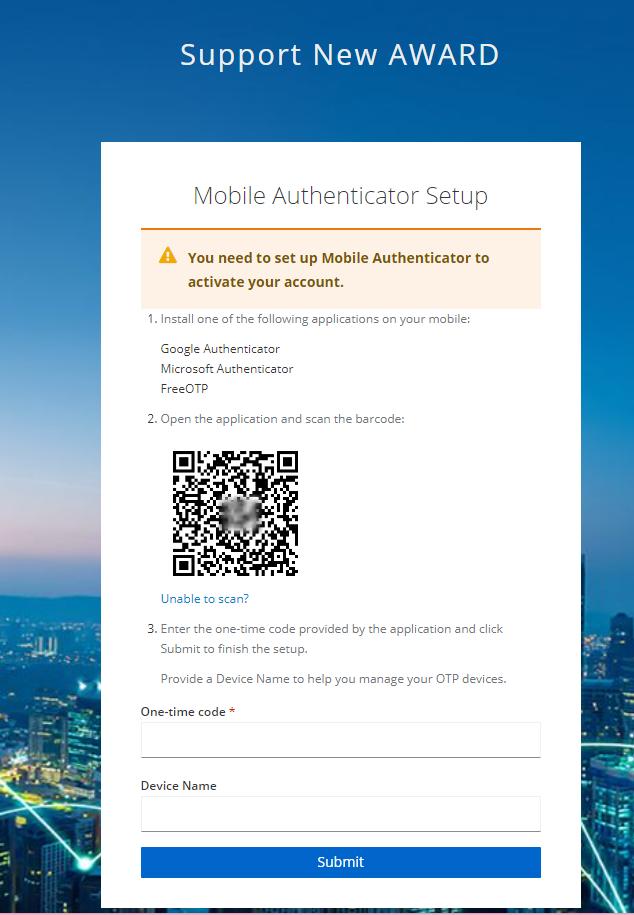
Note: The setup screen will time out, so complete this step promptly.
- Name your device
You’ll be asked to provide a Device Name.
Choose something recognisable, such as Work PC or Office Laptop. - Enter the authentication code
Once setup is complete, you’ll be taken to the authentication screen.
Enter the one‑time code shown in your authenticator app.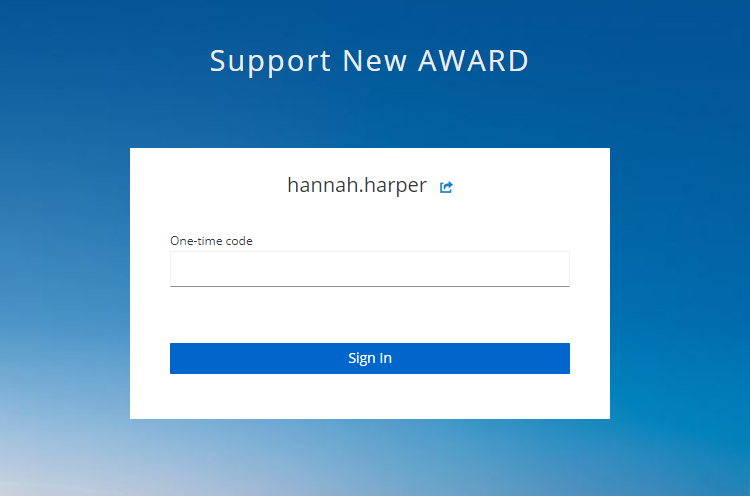
If the code is accepted, you’ll be signed in to AWARD®.
Future sign‑ins
After MFA is set up:
- Enter your username and password as usual
- When prompted, enter the current one‑time code from your authenticator app
This extra step is required each time you sign in and helps keep your account secure.
Related articles: