

This article is intended for Project Administrators and Buyers who are responsible for configuring project questions and evidence requirements within AWARD. It is particularly relevant for users creating structured supplier questionnaires, such as PSQs, where suppliers are required to provide responses using predefined formats such as text entries, picklists, or document uploads.
TABLE OF CONTENTS
Overview
This article explains how to enable, create, and assign Response Measures within AWARD.
Response Measures allow project administrators to define how suppliers respond to evidence items. Response Measures provide greater flexibility for collecting supplier responses. In addition to traditional free-text and document responses, Response Measures support structured response types such as picklists, helping authorities collect information in a more consistent format.
This functionality is particularly useful when creating structured supplier questionnaires, such as Pre-Qualification Questionnaires (PQQs) and Preliminary Market Engagement or Supplier Questionnaire activities. By allowing responses to be collected using predefined formats, Response Measures help ensure information is gathered consistently and is easier to review and assess.
Response Measures can support organisations that wish to design more structured questionnaires in line with their procurement processes and obligations under the Procurement Act 2023.
Important: Response Measures are disabled by default. Once enabled for a project, they cannot be switched off.
Typical Uses
Response Measures are commonly used where buyers need suppliers to provide information in a consistent format, for example:
- Supplier Questionnaires (SQs) and PSQs.
- Pass/fail compliance questions.
- Yes/No declarations.
- Requests for supporting documents or certificates.
- Questions requiring suppliers to select from predefined options.
Using Response Measures can help reduce ambiguity in supplier responses and improve consistency during evaluation.
Enabling Response Measures
To enable Response Measures for a project:
- Navigate to Project → Setup → Tools → Advanced Settings.
- Locate Response Measures.
- Enable the setting.
Note: Once Response Measures have been enabled for a project, they cannot be disabled at a later date.
Creating a Response Measure
To create a Response Measure:
- Navigate to Project → Setup → Measures.
- Select the Response Measures lozenge.
- Click Create.
- Complete the required fields.
- Click Save.
The following Response Measure types can be created:
- Text - Allows suppliers to enter a free-text response.
- Picklist - Allows suppliers to select from predefined options.
- Document - Requires suppliers to upload a document.
Repeat this process for each Response Measure you wish to create.
Once created, Response Measures can be assigned to questions within the project.
Assigning Response Measures to Questions
To assign one or more Response Measures to a question:
- Navigate to Project → Setup → Questions.
- Select the View Evidence Items lozenge.
- Click Manage Evidence Items.
This will open the main Evidence Items page.
- Select the question(s) to which you want to assign a Response Measure.
- Click Assign Response Measure.
- Select the required Response Measure(s) from the list provided.
- Click Add.
You will be returned to the Evidence Items page.
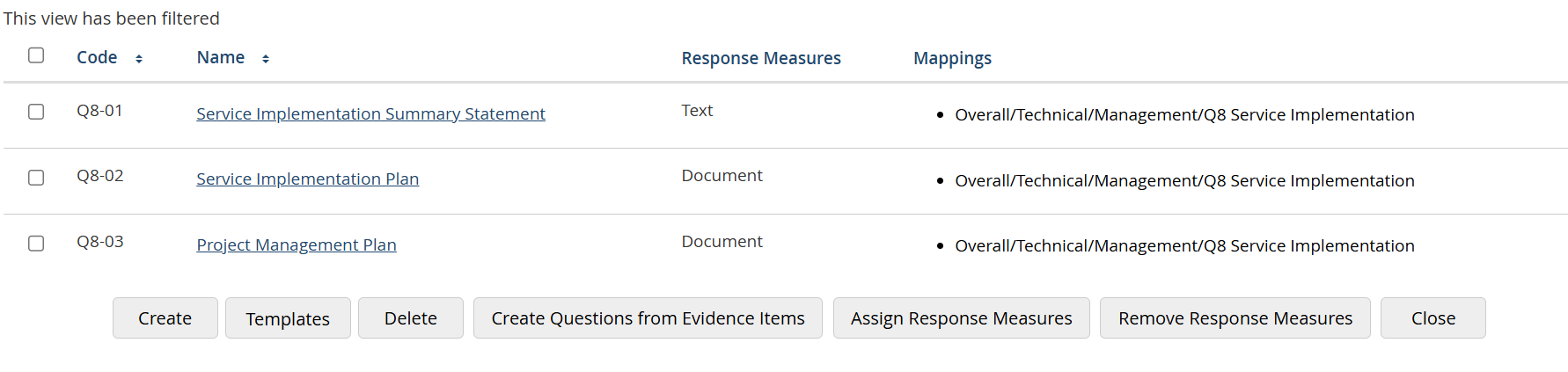
The Response Measures assigned to each question are displayed in the Response Measures column.
Removing a Response Measure
If a Response Measure has been assigned incorrectly and has not yet been used, it can be removed:
- Select the relevant question(s).
- Click Remove Response Measures.
Once complete, close the Evidence Items page to return to the question tree.
Viewing Assigned Response Measures
To view the Response Measures assigned to a question:
- Navigate to the required question.
- Open the View Question page.
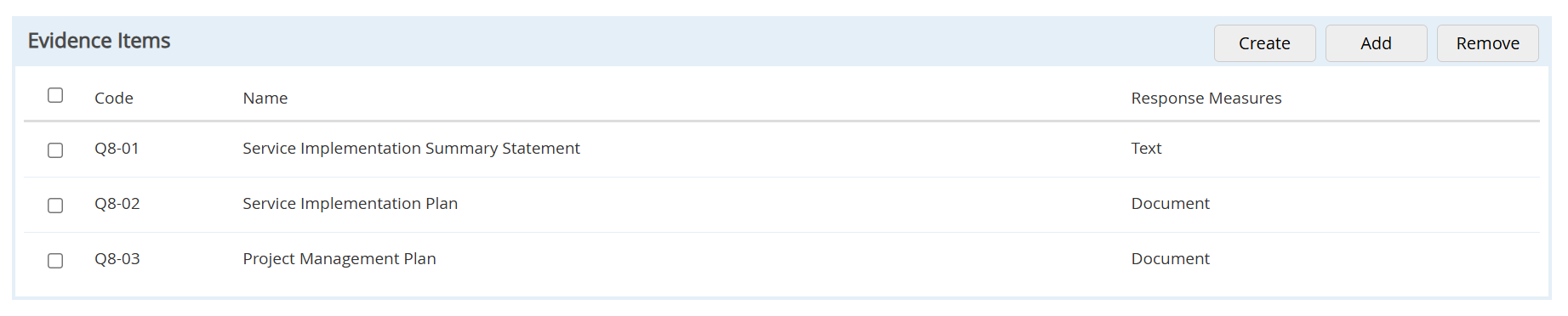
- Scroll to the Evidence Items section.
Any assigned Response Measures will be displayed in the Response Measures column alongside the associated evidence item.
What Suppliers See
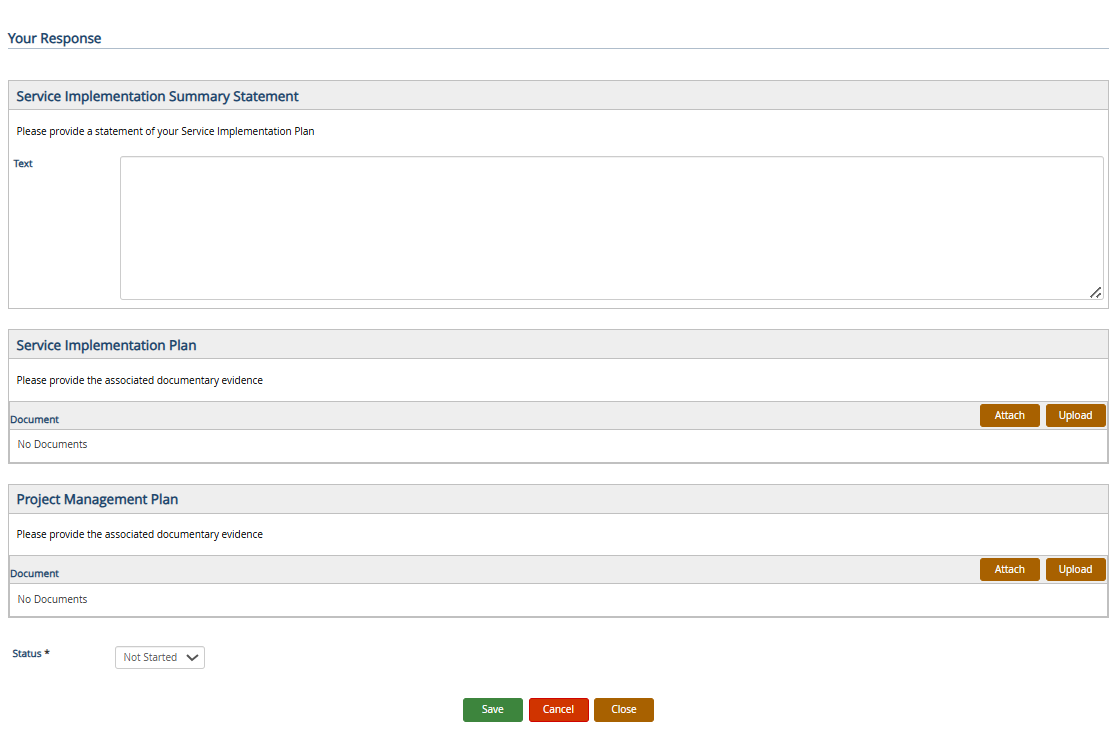
When responding to questions, suppliers will be presented with the Response Measures that have been assigned to the relevant evidence item.
Depending on the Response Measure type configured, suppliers may be required to:
- Enter a text response.
- Select a value from a predefined list.
- Upload a supporting document.
These response options are displayed directly alongside the relevant question or evidence item during the response process.
Additional Information
- Response Measures are hidden by default and must be enabled at project level before use.
- Once enabled for a project, Response Measures cannot be disabled.
- A Response Measure can be assigned to multiple questions.
- Response Measures can be removed only if they have not already been used in responses.