

This article is intended for suppliers whose organisation is registering with the authority for the first time and who have been instructed to self‑register in AWARD®
This article explains how to register as a new supplier in AWARD® when your organisation is not yet registered with the authority.
Overview
As part of a project notice, you will be provided with a URL that allows you to register for an account in AWARD®.
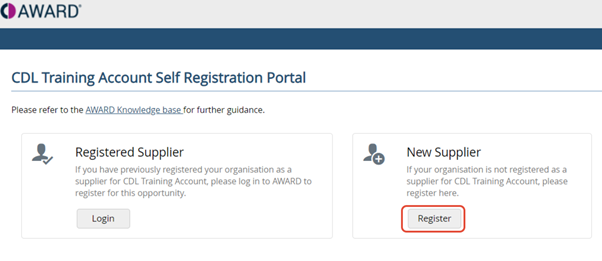
When you browse to the supplied URL, you will be presented with two login options. To begin registering a new organisation, you must select New Supplier.
For an overview of login options, see Supplier Self‑Registration – Overview.
Start Registration as a New Supplier
- Browse to the URL provided in your project notice.
- On the login screen, select New Supplier.
- Click Register to continue.
A sample image showing the Registered Supplier and New Supplier login options.
Enter Registration Details
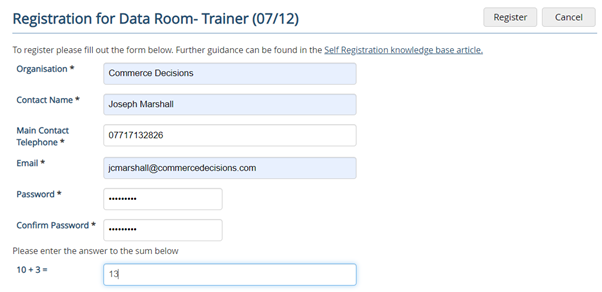
You will be prompted to enter your organisation and contact details, including for example:
- Organisation name
- Contact name
- Email address
Complete all required fields to continue.
A sample image showing the required registration company data fields:
Registration Submission and Email Verification
When your registration details are submitted successfully:
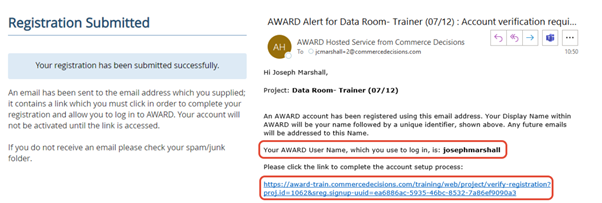
- A confirmation message “Registration Submitted” is displayed
- A completion email is sent to the email address you entered
Please check your inbox for this email. It contains:
- A verification link, which you must click to confirm your registration
- Your username
Note: Your username is generated from your contact name and will be in lower case with no spaces.
Complete Registration
After clicking the verification link in the email:
- You will be taken to the AWARD® login screen
- Enter:
- Your username (from the email)
- The password you created during initial registration
- Log in to complete the registration process
Important: You must complete this step to finish your registration.
Your AWARD® account will not be active until you successfully log in.
A sample image showing the “Registration Submitted” confirmation message and example registration email.
Related Articles:
Supplier Self-Registration- overview